
Best website builder for small businesses

Best website builder for small businesses
Best website builder for beginners

Best website builder for beginners
| WordPress.com standout features | |
| Support |
|
| Best for | Bloggers or small to medium-sized businesses (SMBs) that don’t need to scale their site much |
| Strengths |
|
| Weaknesses |
|
| Promotion | Free plan |
WordPress.com Pros and Cons
Although WordPress.com is a popular choice as an all-in-one solution website builder and web host, it may only work for a few select groups. It’s an affordable choice, and it even offers a free plan, but it lacks a lot of functionality to be a suitable option for growing businesses or serious e-commerce entrepreneurs.
What we like about WordPress.com
- Web hosting included: WordPress.com lets you build a website on the popular WordPress.org CMS, but you don’t have to find your own hosting. This is a huge plus for those who want a turnkey solution for a personal or business website.
- Accept payments: I was a bit surprised to see I could accept payments even on the Personal plan. It’s one of the cheapest website builders that lets you make money with your website.
- Popular freemium plan: I had my own WordPress.com blog back in the day, and the good news is, you can still get a free hosted website. There are limits, but if all you need is a place to share photos or stories, WordPress.com’s free plan works.
- Simple to use and maintain: I’ve used a lot of website builders, and WordPress.com is one of the easiest to use. There’s nothing to install or maintain — WordPress.com has the CMS pre-installed and ready to use. Plus, it automatically updates the software for you.
- Jetpack Essentials: Every plan includes Jetpack Essentials, which is a pack of features that help you add functionality to your site. You can add different types of photo galleries, set up automatic backups, add a contact form, and display a block with your business hours, for example.
- Decent customer support: I appreciate that the WordPress.com team updates its blog (and platform) often, which is a big part of support. There are multiple articles in the help center, so you can find most answers to your questions. Otherwise, there are community forums for everyone or live chat for the high-tier paid plans.
- Mobile responsive themes: Many of WordPress.com’s themes are mobile responsive, but not all.
What fell flat
- Limited functionality: I always forget that WordPress.com doesn’t allow you to do all that you can with WordPress as the self-hosted version. So, you’re stuck with the themes and plugins WordPress.com does allow, meaning limited design and functionality overall.
- WordPress.com branding: A free site includes WordPress.com ads and branding on the footer, which is expected. However, the branding remains on all sites and plans until you upgrade to the Business plan.
- Higher-priced plans almost required: Although there’s plenty you can do with the native functionality of WordPress.com’s site builder, there’s a lot locked behind higher-priced plans. Adding Google Analytics to your site isn’t allowed until the Premium plan.
- Few themes: You get limited choices because WordPress.com makes all the themes available on most WordPress.com plans. So, you won’t have the same options if you were to find a web host with WordPress installed.
Hosted vs. Self-Hosted WordPress
There are two ways to use WordPress:
- Self-hosted: You can download the complete platform from WordPress.org for use on any web hosting environment you set up and control. With this option, you get the greatest control over your site but have to manage all the technical elements independently.
- Hosted: If self-hosting isn’t for you, you can sign up at WordPress.com to use an online-only version of the same application. You can access your WordPress dashboard online, and you don’t have to worry about the infrastructure powering your site.
Whoishostingthis.com’s Editorial Review
WordPress.com is an average web host and website builder. It has approachable pricing and is easy to customize with integrations, but you’ll likely find it restrictive.
According to real users: WordPress is a content management system that is free to download and use. It is popular for its customizability and the number of plugins and extensions available for it. It is easy to integrate with other tools and applications. However, it can be difficult to find immediate help with problems, and site maintenance and security can be a challenge.
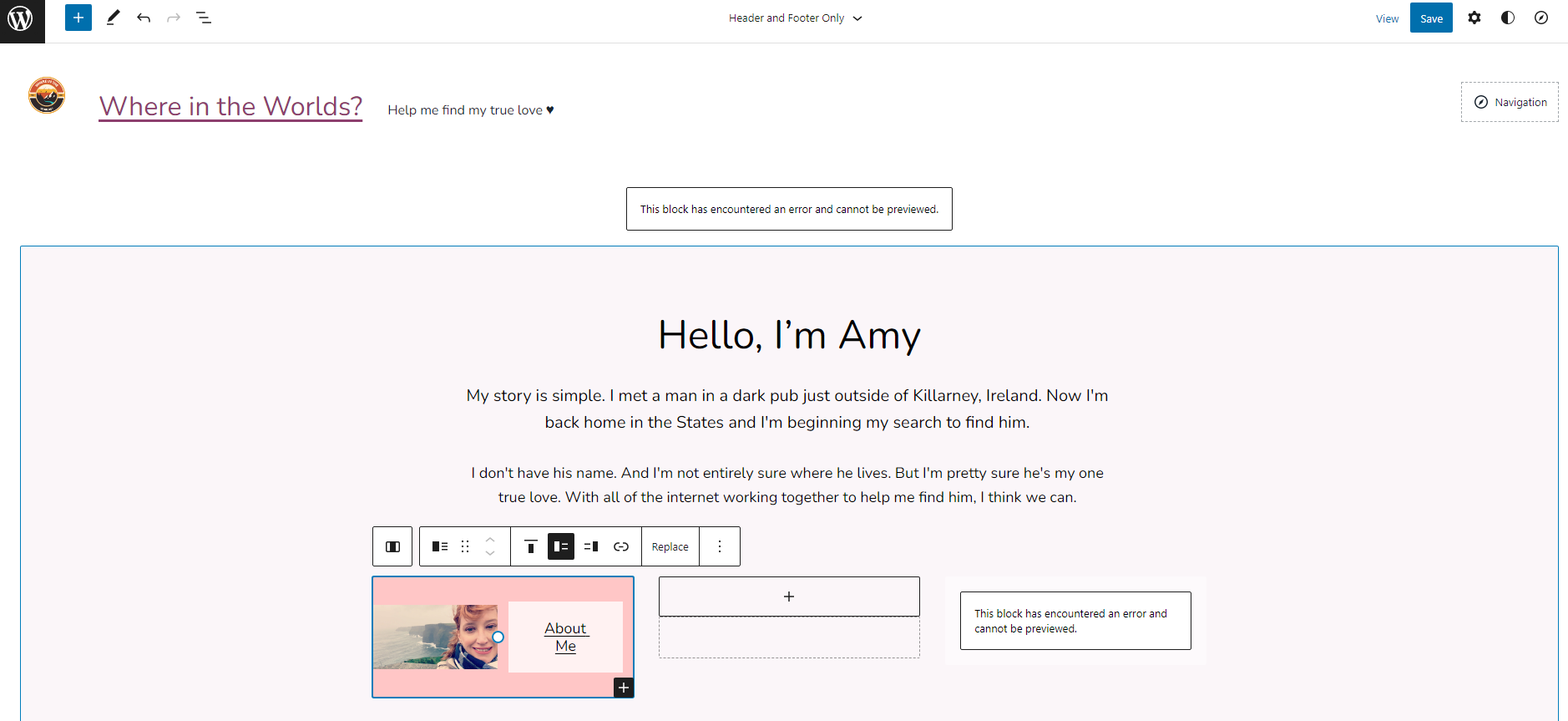
When you’re ready to edit your site, you have the option of diving right in or taking WordPress.com’s tour, which I suggest doing to help you navigate the site editor. Although the site editor doesn’t have a steep learning curve, it is a bit different than most easy-to-use website builders.
The site editor isn’t a true drag-and-drop editor, and it certainly isn’t in the what you see is what you get (WYSIWYG) style — at least, not at first. You have to click on the page to bring up a menu that includes blocks or elements to use. After a few misguided attempts, I figured out I could view all blocks and a left-hand menu popped up with all the blocks and patterns I could use.
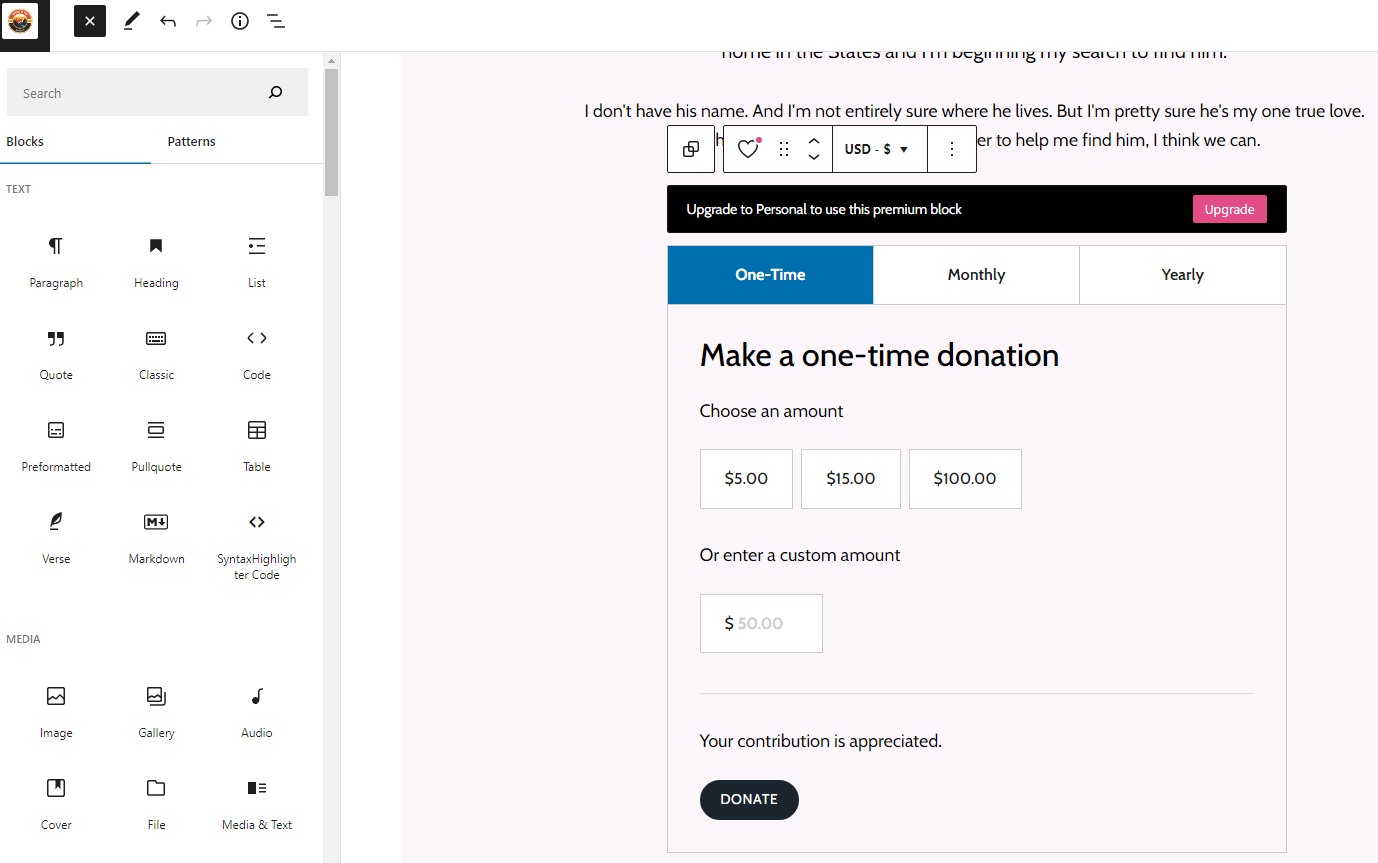
Although this menu made it easier for me to design a page by dragging and dropping blocks (also known as elements) onto a page, I found a lot of those blocks aren’t available on the free plan. Once again, WordPress.com gets an opportunity to upsell.
Also, I noticed that a lot of blocks had errors and there were no suggestions from the editor on how to fix them. I just had to work around them and employ a trial-and-error method of design. The good news is that most blocks are mistake-proof.
For example, when I added an image and text box to one column, I tried to change the size of the image and the textbox changed with it, keeping everything relative. This could be helpful if you have zero design experience and you don’t want to get into the backend to change things by pixels. WYSIWYG editors seem much more user-friendly than WordPress.com, though.
I spent more time trying to figure out how a group, pattern, and block differed from each other and didn’t design as much as I intended the first hour. You do have the option to use a code editor, so if you know HTML, this might be preferable for you.
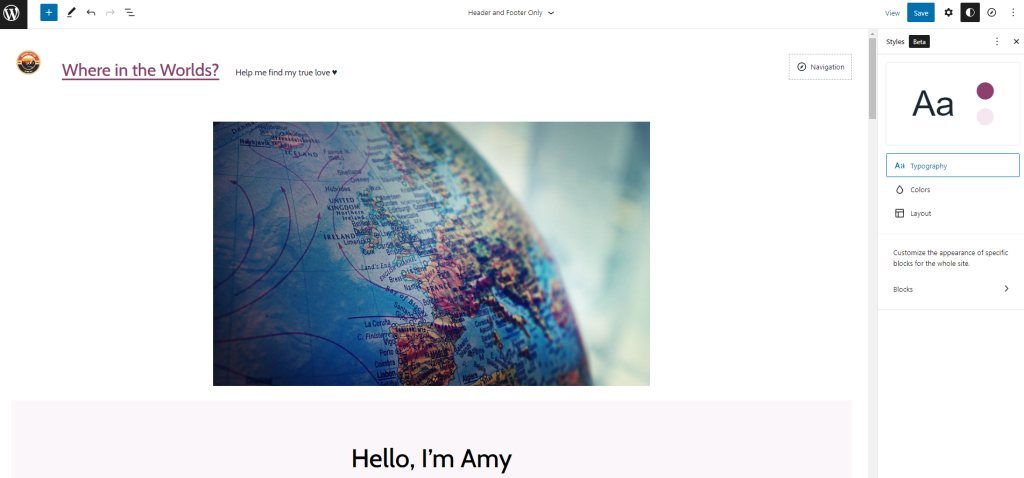
At first, I thought there was no built-in image search, but I finally figured out that if you choose “select media,” you could get free stock images from Pexels. I also stumbled upon “Styles,” WordPress.com’s way of letting you set your typography, buttons, and colors across the site, but it’s still in beta.
You won’t be able to use any plugins or upload themes unless you choose the Business or eCommerce plan. This severely limits what you can do with your WordPress.com site — even if you know how to code.
Overall, I found WordPress.com’s site editor somewhat easy to use, but ultimately frustrating. I ran into so many inexplicable errors and no guidance on how to fix them. It feels disorganized and more like I was designing in the dark.
The first step in security for any website is an SSL certificate. Thankfully, WordPress.com includes one for every website — even free sites. WordPress.com also actively monitors its servers for malware and dedicated denial of service (DDoS) attacks.
To combat data loss, WordPress.com gives you the ability to back up your site at any time. Some paid plans can set up automatic backups, which is better for hands-off security. And automatic WordPress (the CMS) updates help, too. The other benefit to using WordPress.com is that you don’t have to worry about server settings as they’re all set up with firewalls to protect you from the aforementioned attacks.
- Chat: I didn’t test this personally because I used the free plan but based on my research, live chat can be helpful. Generally, you can expect an answer within 24 hours, but that’s not always possible if support requests are numerous.
- Email: WordPress.com offers email support, but like live chat, you must have a paid plan. It’s also generally handled in 24 hours, but no guarantees.
- Documentation: Most of the articles I read were helpful for walking me through a specific task. A few I came across hadn’t been updated since WordPress.com changed its plans (there’s no longer a Pro plan, but that language was throughout some articles and the WordAds site).
- Community: One of the best ways to get help for WordPress.com issues is to go to the community forums. There I found many answers to questions (or better explanations) that weren’t in support documents.
Compare WordPress.com Alternatives
WordPress.com is a popular pick for a lot of new users who want help with designing a website, but it may not be the best choice for you. While WordPress is one the most robust, widely used publishing platforms on the web, that’s a very different animal than what you can expect with WordPress.com.
That distinction is an important one. If you’re looking for more theme or template options, freedom to add your own plugins, or better e-commerce support, you’ll likely find that in the chart below.
| Website builder | Starting price | Basic plan features |
| WordPress.com Overall rating | Free |
|
| Hostinger Overall rating Read our full Hostinger review. Consider Hostinger for: Innovative free tools to help you build your brand and website. | $2.99 per month |
|
| Squarespace Overall rating Read our full Squarespace review. Consider Squarespace for: Modern templates; easy template switching. | $16 per month |
|
| Wix Overall rating Read our full Wix review. Consider Wix if: You need more design template options. Wix offers far more (and better) predesigned templates to get you started. | $16 per month |
|
Frequently Asked Questions About WordPress.com
Is WordPress a good website builder?
What is the difference between a website builder and WordPress
Is WordPress.com any good?
What is the difference between WordPress and WordPress.com?
Can WordPress.com delete your website?
Does WordPress host your website?
Do I have to pay WordPress to use my own domain?
Can I build a WordPress site without hosting?
How I Rated WordPress.com’s Website Builder
At Whoishostingthis.com, we know how important it is to test products thoroughly and compare how they measure against the industry leaders. I spent hours familiarizing myself with WordPress.com’s dashboard, setup process, website builder, and all of its features. While my definition of “easy to use” may differ from others, I approached this as though I was new to website builders and compared it to my experience with some of the top site builders we’ve also reviewed.
This comprehensive overview of WordPress.com can quickly answer whether it’s the right website builder for you. We also drilled down to specific features, so you can have a more detailed look at features or services. I gave more weight to some parameters, including features, security, support, pricing, ease of use, and how WordPress.com has improved since our last review.
I test website builders based on the following factors:
Learn more about our review methodology.